
Running a successful food blog involves much more than publishing great recipes and taking beautiful food photos. You also need to protect your site from spam bots, brute-force login attempts, vulnerable plugins, malware, and other security threats.
That is where the best WordPress security plugins for food bloggers can help.
A good security plugin adds extra layers of protection around your site. Depending on the plugin, that may include login protection, two-factor authentication, firewall rules, malware scanning, vulnerability monitoring, file-change detection, and alerts when suspicious activity appears.
Security is only one part of your WordPress setup. Choosing the right WordPress recipe plugin can also improve recipe structure, publishing workflow, and the way your content is presented to search engines.
Security becomes even more important as your food blog grows. Over time, your website may contain hundreds of recipes, years of original photography, affiliate links, advertising code, email signup forms, and valuable search rankings. If the site is compromised, the damage can go far beyond simply reinstalling WordPress.
The good news is that you do not need to be a cybersecurity expert to improve your website’s security.
Several excellent WordPress security plugins can automate much of the monitoring and protection for you while helping you spot potential problems before they become serious.
In this guide, we’ll compare the best WordPress security plugins for food bloggers, including free and premium options, and look at which features are most useful for protecting a growing recipe website.
Why Food Bloggers Need WordPress Security
Food blogs may not seem like obvious targets for hackers, but many WordPress attacks are automated rather than targeted at one specific website.
Bots continuously scan sites looking for outdated plugins, vulnerable themes, weak passwords, exposed login pages, and other security weaknesses they may be able to exploit.
If an attacker succeeds, the result could include malicious files, unwanted redirects, spam pages appearing in search results, compromised administrator accounts, or even a website that stops working altogether.
For a food blogger who depends on Google traffic, Pinterest, affiliate income, display advertising, or an email audience, even a temporary security problem can be disruptive.
A WordPress security plugin can reduce that risk by monitoring suspicious activity and adding additional protection around your website.
However, no plugin should be treated as a complete security solution on its own. Keeping WordPress, your theme, and your plugins updated, using strong unique passwords, enabling two-factor authentication, maintaining reliable off-site backups, and choosing reputable hosting are still essential parts of protecting a WordPress food blog.
Quick Comparison: Best WordPress Security Plugins for Food Bloggers
There are dozens of WordPress security plugins available, but most food bloggers do not need an overly complicated setup. The right plugin should give you strong protection without making the site difficult to manage or adding unnecessary performance overhead.
Here is a quick comparison of the WordPress security plugins covered in this guide:
Quick Comparison: Best WordPress Security Plugins for Food Bloggers
| Security Plugin | Best For | Free Version | Firewall | Malware Scanning | 2FA |
|---|---|---|---|---|---|
| Wordfence Security | All-around WordPress protection | Yes | Yes | Yes | Yes |
| Sucuri Security | Monitoring and cloud-based firewall protection | Yes | Premium WAF | Remote scanning | Limited |
| Shield Security | Automated bot and login protection | Yes | Yes | Yes | Yes |
| All-In-One Security (AIOS) | Beginners who want lots of free hardening tools | Yes | Yes | File/security checks; malware scanning in Premium | Yes |
| Kadence Security | Login, user, and vulnerability protection | Yes | Security rules | Vulnerability and site checks | Yes |
| MalCare | Malware scanning and cleanup | Yes | Paid plans | Yes | Yes |
| WP Cerber Security | Advanced traffic, bot, and login controls | Yes | Yes | Yes | Yes |
Free and premium features can change over time, so always check the developer’s current feature list before choosing a paid plan.
What Should You Look for in a WordPress Security Plugin?
Not every food blogger needs the same security setup.
A small recipe site with one administrator has very different requirements from a larger website with several writers, editors, contractors, advertisers, or e-commerce features.
The same principle applies to the rest of your WordPress stack. Our guide to the best WordPress recipe plugins for food bloggers explains what to consider before adding another major plugin to your site.
Still, there are a few security features that are worth paying attention to when comparing plugins.
Web Application Firewall
A web application firewall, or WAF, helps identify and block suspicious requests before they can cause problems on your site.
Some security plugins run their firewall directly inside WordPress, while services such as Sucuri can filter traffic through a cloud-based firewall before it reaches your hosting server.
For a growing food blog receiving large amounts of Google, Pinterest, or social traffic, that extra layer of filtering can become increasingly valuable.
Malware Scanning
Malware scanning looks for suspicious code, modified files, backdoors, malicious URLs, and other signs that a website may have been compromised.
The way these scans work can vary considerably between plugins.
For example, Sucuri’s free plugin uses remote malware scanning along with WordPress core integrity checks. Because the scan is performed remotely, it cannot inspect every server-side file.
Other services perform deeper file-level scanning or analyze website files on external servers.
This is one of the most important differences to understand when comparing security plugins.
Brute-Force Protection
Automated bots frequently attempt to guess WordPress usernames and passwords.
Brute-force protection can reduce these attacks by limiting repeated login attempts, identifying suspicious behavior, blocking abusive IP addresses, or requiring additional authentication.
It should not replace good password practices, though.
Administrator accounts should still use long, unique passwords that are not reused anywhere else.
Two-Factor Authentication
Two-factor authentication, usually shortened to 2FA, adds another verification step when someone logs into WordPress.
Even if an attacker manages to obtain your password, they would still need the second authentication method before they could access the account.
For that reason, enabling 2FA for administrator accounts is one of the simplest and most effective security improvements you can make.
File Integrity Monitoring
A WordPress installation contains thousands of files, making unauthorized changes difficult to spot manually.
File integrity monitoring helps identify important files that have been changed unexpectedly.
Sucuri, for example, includes WordPress core integrity checking, while Shield Security provides tools for detecting suspicious changes and scanning WordPress files, plugins, and themes.
Not every file change indicates an attack. Normal WordPress, theme, and plugin updates also modify files.
The value of integrity monitoring is that it helps you notice changes you were not expecting.
Bot and Spam Protection
Food blogs can attract a large amount of automated traffic once they begin ranking in search engines.
Some of those bots are legitimate. Others are not.
Malicious or unwanted bots may try to:
- Guess passwords
- Submit comment spam
- Probe vulnerable URLs
- Scan installed plugins
- Create fake registrations
- Abuse contact forms
Several security plugins include tools specifically designed to detect and limit this kind of activity.
Shield Security, for example, places a strong emphasis on bot detection, login protection, spam reduction, and automatic blocking of suspicious behavior.
Security Activity Logs
If several people have access to your food blog, an activity log can be especially useful.
It can help you track events such as:
- User logins
- Plugin changes
- Theme changes
- File modifications
- Configuration changes
- Other security-related activity
These logs can make it much easier to investigate what happened if something unexpected changes on the website.
Security Notifications
You probably do not want to spend every day staring at a security dashboard.
A useful security plugin should notify you when something important happens, such as a malware detection, vulnerable plugin, suspicious login attempt, or unexpected file change.
The key is to avoid notification overload.
Configure alerts so that important issues stand out instead of disappearing among dozens of low-priority emails.
Do You Really Need a WordPress Security Plugin?
For most self-hosted WordPress food blogs, adding an extra layer of security is a sensible precaution.
However, installing a security plugin does not automatically make a website secure.
Your overall security setup should also include:
- Regular WordPress, theme, and plugin updates
- Strong, unique passwords
- Two-factor authentication for administrator accounts
- Reliable automatic off-site backups
- HTTPS
- Reputable WordPress hosting
- Removal of unused themes and plugins
- Limited administrator access
- A supported and updated version of PHP
Think of your security plugin as one layer of protection, not the entire security system.
With those basics in place, let’s look more closely at the individual plugins and what each one offers food bloggers.
1. Wordfence Security
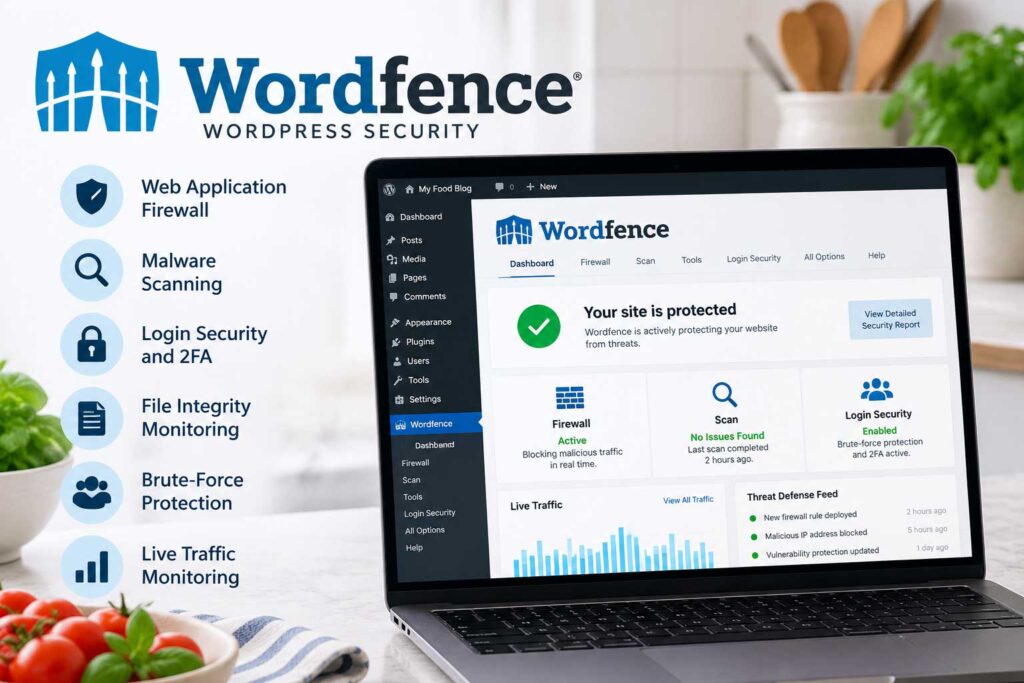
Wordfence Security is one of the most established WordPress security plugins and a strong option for food bloggers who want firewall protection, malware scanning, login security, and monitoring in one place.
Unlike cloud-based services that filter traffic before it reaches your server, Wordfence runs its firewall and scanner directly within your WordPress environment.
For many smaller food blogs, the free version provides more than enough functionality to get started.
Wordfence Security Features
Some of the most useful Wordfence features include:
- Web application firewall
- Malware scanning
- Brute-force protection
- Two-factor authentication
- Passkey support
- Login security
- File integrity monitoring
- IP blocking
- Security alerts
- Live traffic monitoring
- WordPress vulnerability monitoring
Two-factor authentication is available in the free version, making it easy to add stronger protection to administrator accounts.
Wordfence also supports passkeys, giving users another way to secure WordPress logins without relying entirely on traditional passwords.
Wordfence Firewall
One of Wordfence’s main features is its Web Application Firewall, or WAF.
The firewall analyzes incoming requests and can block traffic that matches known malicious patterns or exploit attempts.
Wordfence also develops new firewall rules when vulnerabilities are discovered in WordPress plugins, themes, or other software.
There is one important difference between the free and paid versions.
Premium customers receive new firewall rules immediately, while Wordfence currently provides those same rules to free users 30 days later.
That does not make the free version ineffective, but the delay is worth considering once your food blog becomes an important source of traffic or income.
Wordfence Malware Scanner
Wordfence also includes a malware scanner that checks your WordPress installation for suspicious files and unexpected changes.
It can look for problems involving:
- WordPress core files
- Plugins
- Themes
- Malware signatures
- Malicious URLs
- Backdoors
- Unexpected file modifications
If you suddenly notice strange redirects, unfamiliar files, unexpected administrator accounts, or unexplained changes, the scanner gives you somewhere practical to start investigating.
Login Security and 2FA
WordPress login pages are frequent targets for automated attacks.
Wordfence includes brute-force protection and two-factor authentication to make unauthorized access more difficult.
For a food blog, 2FA should at least be enabled for:
- Administrators
- Developers
- Website managers
- Anyone who can install plugins or edit site files
Writers using lower-level Author or Contributor accounts generally do not need the same level of access as administrators.
Wordfence Free vs. Premium
The free version is powerful enough for many small and medium-sized food blogs.
Wordfence Premium adds real-time firewall-rule and malware-signature updates, an IP blocklist, country blocking, expanded audit logging, and priority support.
As of September 2026, Wordfence Premium is listed at $149 per year for one website.
For a new food blog with limited traffic and revenue, the free version may be sufficient when paired with reliable hosting, backups, regular updates, and 2FA.
Once the website becomes a meaningful business asset, paying for faster threat updates and additional protections may be easier to justify.
Is Wordfence Good for Food Bloggers?
Wordfence is a good fit for food bloggers who want most of their security tools managed from one WordPress dashboard.
It brings together:
Firewall protection + malware scanning + login security + security monitoring
without requiring several separate plugins.
The tradeoff is that Wordfence offers a lot of settings.
Beginners should resist the temptation to turn on every aggressive option immediately. Strict blocking rules, excessive scanning, or incorrectly configured firewall settings can sometimes interfere with legitimate plugins, APIs, or external services.
Start with the recommended configuration and adjust advanced settings only when you understand what they do.
Wordfence Pros and Cons
| Pros | Cons |
|---|---|
| Strong free version | The number of settings can feel overwhelming at first |
| Firewall and malware scanner in one plugin | Some advanced protections require Premium |
| Free two-factor authentication | Free users receive new firewall rules later than paying users |
| Passkey support | Live traffic monitoring and aggressive scans can use additional server resources |
| Brute-force protection | |
| File integrity monitoring | |
| Large WordPress security ecosystem | |
| Real-time threat updates available with Premium |
Best For
Best for an all-around security setup with a strong free tier.
Wordfence is an easy place to start if you want broad protection in one plugin. However, if you prefer cloud-based traffic filtering or a different approach to malware protection, there are several strong alternatives worth considering.

2. Sucuri Security
Sucuri Security is another well-known WordPress security option, but it works differently from Wordfence.
The most important distinction is that the free Sucuri WordPress plugin and the paid Sucuri Website Firewall are separate products.
The free plugin focuses on monitoring, hardening, file integrity checks, remote malware scanning, security alerts, and post-hack tools. Sucuri’s cloud-based Web Application Firewall, or WAF, is a paid service that filters malicious traffic before it reaches your hosting server.
Sucuri Security Features
The free WordPress plugin includes features such as:
- Security activity auditing
- File integrity monitoring
- Remote malware scanning
- Blocklist monitoring
- WordPress security hardening
- Core file integrity checks
- Security notifications
- Post-hack recovery tools
- Integration with Sucuri’s paid firewall
These tools can help you monitor what is happening on your food blog and spot suspicious changes more quickly.
Remote Malware Scanning
Sucuri’s free plugin uses its SiteCheck scanner to examine the public-facing parts of your website for malware, malicious code, SEO spam, blocklisting issues, website errors, and outdated software.
Because the scan runs remotely, much of the work happens outside your WordPress installation rather than using your hosting resources.
There is a tradeoff, though.
A remote scanner cannot inspect every private server-side file. Sucuri notes that SiteCheck has limited access and primarily detects malicious code visible in the website’s external source.
That makes it useful for monitoring, but it should not be treated as a guarantee that every possible infection will be detected.
File Integrity Monitoring
Sucuri can also compare important WordPress core files against expected versions and flag unexpected changes.
That includes core PHP, JavaScript, and CSS files.
Attackers do not always upload an obvious malware file. They may instead modify a legitimate WordPress file, which can be much harder to notice manually.
Most food bloggers are never going to inspect those files manually, so automated integrity checking can make unusual changes much easier to spot.
WordPress Security Hardening
The plugin also includes several hardening options designed to reduce common WordPress attack surfaces.
These tools can help strengthen parts of your configuration without requiring you to manually edit sensitive WordPress or server files.
Still, avoid enabling every restriction just because it sounds more secure.
Recipe plugins, publishing tools, APIs, and other third-party services may rely on WordPress functionality that aggressive hardening could interfere with.
Security Activity Auditing
Sucuri records security-related activity inside WordPress, which can help you investigate unexpected changes.
The activity log can provide visibility into events involving:
- User logins
- Plugin changes
- Theme changes
- Configuration updates
- File modifications
- Other security-related activity
The activity trail matters more once several people can make changes to the site.
If a developer, editor, or contractor changes something unexpectedly, an activity trail can help you work out what happened.
Post-Hack Security Tools
Sucuri also includes tools designed to help after a suspected compromise.
These can assist with actions such as resetting security keys, changing passwords, reviewing installed plugins, and restoring WordPress core integrity.
These features are useful for recovery, although a serious malware infection may still require a professional cleanup service.
Sucuri Website Firewall
The Sucuri Website Firewall is what really separates Sucuri from a typical WordPress-only security plugin.
Instead of waiting until a suspicious request reaches WordPress, the cloud firewall sits between your visitors and your hosting server.
Traffic passes through Sucuri’s network first, where malicious requests can be filtered before they reach your website.
The firewall is designed to help protect against threats such as:
- DDoS attacks
- Brute-force attempts
- SQL injection
- Cross-site scripting
- Known vulnerability exploits
- Malicious bots
- Certain zero-day attacks
Sucuri’s firewall service also includes CDN and caching features that can reduce some load on your origin server.
Why This Can Matter for a Food Blog
Cloud filtering becomes more attractive as your food blog grows.
Imagine a recipe suddenly starts ranking well in Google or takes off on Pinterest. You may receive thousands of legitimate visits while bots and malicious requests are hitting the site at the same time.
Filtering unwanted traffic before it reaches WordPress can reduce unnecessary work for your hosting server.
For larger food sites where uptime and performance directly affect advertising or affiliate revenue, that extra layer of protection can be worthwhile.
Sucuri Free vs. Paid
The free plugin gives you monitoring and hardening tools, but the cloud WAF requires a paid plan.
As of September 2026, Sucuri lists:
- Basic Firewall: $9.99 per month
- Pro Firewall: $19.98 per month
- Basic Security Platform: $229 per year
- Pro Security Platform: $339 per year
The broader security-platform plans include professional malware removal, while the standalone firewall plans focus on traffic protection, CDN, and related features.
For most food bloggers, the decision looks something like this:
Small or newer food blog:
The free plugin may be enough for monitoring and basic hardening.
Established blog with growing traffic:
The cloud firewall becomes more attractive.
Revenue-producing site where malware cleanup would be difficult to handle yourself:
The broader security platform may be worth considering.
Sucuri Pros and Cons
| Pros | Cons |
|---|---|
| Free WordPress security plugin | Cloud firewall is not included with the free plugin |
| Remote malware scanning | Remote scanning cannot inspect every server-side file |
| File integrity monitoring | Full protection costs more than relying on a free plugin alone |
| Security activity auditing | Activating the cloud firewall may require DNS changes |
| WordPress hardening tools | The plugin, firewall, and full security-platform options can be confusing at first |
| Blocklist monitoring | |
| Post-hack recovery tools | |
| Cloud-based firewall available | |
| DDoS protection with paid firewall | |
| Malware cleanup with security-platform plans | |
| CDN and caching available |
Wordfence vs. Sucuri
The easiest way to understand the difference is:
Wordfence runs much of its protection directly inside your WordPress environment.
Sucuri’s paid firewall filters traffic through its cloud infrastructure before it reaches your hosting server.
Neither approach is automatically better for every website.
A smaller food blog may prefer Wordfence because so much functionality is available inside WordPress.
A growing site may prefer Sucuri’s cloud firewall because unwanted traffic can be blocked before reaching the server.
The better choice depends on your hosting, traffic level, budget, and how you prefer to manage security.
Best For
Best for sites that want cloud-based traffic filtering before requests reach WordPress.
Sucuri makes more sense as a recipe site grows and uptime, server resources, and malicious traffic become bigger concerns.
Next, we’ll look at Shield Security, which puts much more emphasis on automated bot and login protection.

3. Shield Security
Shield Security is a strong option for food bloggers who want WordPress security to work quietly in the background.
Its biggest strengths are automated bot detection, brute-force protection, login security, IP blocking, firewall rules, and file monitoring. Rather than constantly asking you to review warnings, Shield is designed to identify suspicious behavior and automatically handle many routine threats.
That approach works well for bloggers who want security running quietly in the background instead of another dashboard they need to check every day.
Shield Security Features
The free version includes a broad collection of tools, including:
- Web application firewall
- Automated bot detection
- Automatic IP blocking
- Brute-force protection
- Two-factor authentication
- WordPress core file scanning
- Suspicious-file detection
- User enumeration protection
- XML-RPC controls
- REST API protection
- Comment spam protection
- Activity logging
- Login session controls
- Security Admin protection
ShieldPRO adds more advanced malware scanning, plugin and theme integrity checks, vulnerability detection, automatic file repair, passkeys, rate limiting, advanced spam protection, CrowdSec intelligence, backups, and other tools.
Automatic Bot Protection
One of Shield’s standout features is silentCAPTCHA.
Instead of forcing legitimate visitors to solve puzzles or click image challenges, silentCAPTCHA evaluates activity behind the scenes and blocks requests that appear to come from malicious bots.
It can protect areas such as:
- Login forms
- Registration forms
- Lost-password forms
- Comment forms
For a food blog, that means stronger bot protection without putting unnecessary obstacles in front of real readers.
Readers should be able to leave a recipe comment or log into an account without constantly being interrupted by CAPTCHA challenges.
Shield’s current free plan includes silentCAPTCHA protection, while paid plans expand its capabilities across additional forms and integrations.
Automatic IP Blocking
Shield can also build a reputation profile for visitors based on their behavior.
Repeated failed logins, suspicious requests, firewall violations, and other activity can contribute to an IP reputation score. Once a visitor crosses configured thresholds, Shield can block further requests automatically.
That means you do not have to spend time manually reviewing security logs and adding individual IP addresses to a blocklist.
For most food bloggers, automated blocking is far more practical.
Firewall Protection
Shield includes firewall rules designed to identify malicious requests and common WordPress attack patterns, including suspicious request parameters, known exploit signatures, and SQL injection probes.
It also provides controls for WordPress features that are frequently targeted by bots.
XML-RPC can be restricted or disabled, including pingbacks and trackbacks.
REST API access can also be restricted for unauthenticated requests.
Be careful with these settings, though.
Recipe plugins, mobile apps, publishing services, WooCommerce, and other integrations may depend on WordPress APIs. Do not disable functionality simply because a security plugin gives you the option.
Two-Factor Authentication
Shield also includes two-factor authentication, giving you another layer of protection beyond your WordPress password.
For most food blogs, enabling 2FA on administrator accounts is one of the easiest security improvements you can make.
Even if someone obtains your password, they would still need the second authentication method before gaining access to the dashboard.
File Scanning and Integrity Protection
Shield’s free version can check WordPress core files for unexpected changes and identify suspicious or unrecognized files.
It can also flag abandoned plugins that may represent an additional security risk.
ShieldPRO goes considerably further with features such as:
- Malware scanning
- Plugin and theme integrity scanning
- Vulnerability scanning
- Automatic file repair
- More frequent scanning
- Malware removal tools
The paid scanner can compare installed plugin and theme files against known-good originals and identify unauthorized modifications.
Automatic File Repair
ShieldPRO can automatically repair certain WordPress, plugin, and theme files that have been unexpectedly modified.
If a legitimate WordPress file is altered or damaged, automatic repair can save you from having to find and replace it manually.
It should never replace a proper backup system, though.
Your food blog should still have an independent off-site backup that can restore the entire website if something goes badly wrong.
WordPress Activity Log
Shield records important activity occurring inside WordPress.
That can include:
- User logins
- Account changes
- Plugin and theme activity
- Post edits
- Suspicious requests
- Security events
An activity log becomes much more valuable once several people have access to the site.
If you work with recipe writers, developers, editors, or virtual assistants, an activity log gives you a much clearer record of what changed and when.
Security Admin Protection
Another useful Shield feature is Security Admin.
It allows you to protect Shield’s own settings so another WordPress administrator cannot casually disable or modify important security controls.
For a one-person food blog, this may not matter much.
For a larger site where developers, contractors, or multiple administrators have access, it provides another useful layer of control.
CrowdSec Integration
Paid Shield plans can also use CrowdSec threat intelligence to identify known malicious IP addresses based on activity observed across a broader network.
This gives Shield more information than it would have if it relied only on suspicious traffic detected on your own website.
For larger WordPress sites dealing with substantial automated traffic, that can provide another useful layer of defense.
Shield Security Free vs. Pro
Shield’s free version already covers many of the features a smaller food blog is likely to need.
| Free Features | ShieldPRO Features |
|---|---|
| Firewall protection | Advanced malware scanning |
| silentCAPTCHA bot detection | Plugin and theme integrity scanning |
| Automatic IP blocking | Vulnerability scanning |
| Brute-force protection | Automatic file repair |
| Two-factor authentication | Passkeys |
| WordPress core integrity scanning | Rate limiting and DoS protection |
| Suspicious-file detection | Advanced CrowdSec intelligence |
| Activity logging | Broader form-spam protection |
| XML-RPC and REST API controls | More frequent scanning |
| Comment spam protection | ShieldBACKUPS |
| Additional management and recovery tools |
The current plan comparison makes the split fairly clear: the free version covers core protection, while paid plans focus more heavily on advanced detection, recovery, account controls, and larger-site management.
Shield Security Pros and Cons
| Pros | Cons |
|---|---|
| Strong free version | Some advanced scanning and recovery features require ShieldPRO |
| Automated bot protection | The number of settings can feel complicated at first |
| Two-factor authentication | Aggressive REST API or XML-RPC restrictions can interfere with other services |
| Automatic IP blocking | Some Pro features may be unnecessary for a small food blog |
| Firewall protection | |
| WordPress file integrity monitoring | |
| Activity logging | |
| Spam protection | |
| Security Admin protection | |
| Advanced malware and vulnerability tools available in Pro |
Is Shield Security Good for Food Bloggers?
Yes, especially if your site receives a lot of automated traffic.
Recipe websites can attract Google crawlers, Pinterest traffic, social bots, feed readers, comment spam, scrapers, and malicious scanners all at the same time.
Shield’s emphasis on automated bot detection is useful because it can block suspicious activity without constantly forcing legitimate visitors through visible CAPTCHA challenges.
That gives you stronger protection without adding unnecessary friction for readers.
Best For
Best for automated bot and login protection with minimal day-to-day management.
The free version covers plenty for a smaller site. ShieldPRO starts to make more sense as the blog grows and you need deeper malware scanning, vulnerability monitoring, recovery tools, or backups.
Next, we’ll look at All-In-One Security (AIOS), one of the most feature-rich free WordPress security plugins available.

4. All-In-One Security (AIOS)
All-In-One Security (AIOS) is a feature-rich WordPress security plugin for bloggers who want plenty of protection without paying for a premium plan right away.
You may still see it referred to by its older name, All In One WP Security & Firewall.
AIOS combines login security, two-factor authentication, firewall rules, spam protection, file monitoring, database protection, and other WordPress hardening tools in one dashboard.
For food bloggers who want more control without installing several separate security plugins, it is a strong option.
AIOS Security Features
The free version includes tools such as:
- Login protection
- Brute-force protection
- Two-factor authentication
- Firewall rules
- User-account security
- File-change detection
- File-permission scanning
- Database protection
- Comment-spam prevention
- IP blocking
- Login lockouts
- Security auditing
- User-session controls
AIOS also groups many settings by difficulty level, which can make the plugin easier to approach if you are new to WordPress security.
Login and Brute-Force Protection
AIOS includes several tools designed to protect the WordPress login area from automated attacks.
You can use features such as:
- Login lockouts
- Failed-login monitoring
- Two-factor authentication
- User-enumeration protection
- Session controls
- Protection against common administrator usernames
You can also configure how many failed login attempts are allowed before an IP address is temporarily blocked.
Avoid setting the threshold too low, though. Otherwise, you or legitimate contributors could accidentally lock yourselves out after a few mistyped passwords.
Two-Factor Authentication
AIOS includes two-factor authentication, allowing you to add another verification step to WordPress logins.
For food blogs, 2FA should be enabled for administrator accounts and anyone with access to important settings.
That includes users who can:
- Install plugins
- Change themes
- Manage users
- Modify settings
- Add advertising or tracking code
A strong password is still important, but 2FA provides another barrier if that password is ever exposed.
WordPress Firewall
AIOS includes firewall rules designed to block suspicious requests and protect sensitive parts of WordPress.
It can also help restrict access to certain files and detect potentially malicious request patterns.
The ability to gradually enable stronger protections is useful for food blogs because recipe websites often depend on many plugins and external services.
A typical site may use:
- Recipe plugins
- Advertising scripts
- Email integrations
- Pinterest tools
- SEO plugins
- Affiliate plugins
- Caching systems
- Contact forms
An overly aggressive firewall rule can sometimes interfere with one of these services, so test your site after enabling stronger protections.
File and Database Protection
AIOS includes several tools designed to protect WordPress files and database settings.
These can help with:
- File-permission checks
- Sensitive-file protection
- File-change monitoring
- Database security
- Disabling PHP file editing in WordPress
- Detecting unexpected modifications
File-change monitoring is especially useful because it can help you notice changes you were not expecting.
Not every modification is suspicious. WordPress, theme, and plugin updates naturally change files.
The goal is to make unusual activity easier to spot.
Comment Spam Protection
Food blogs often receive large amounts of automated comment spam.
AIOS includes tools that can help detect and block suspicious comment activity.
That is handy on recipe sites where readers regularly leave:
- Reviews
- Questions
- Substitution ideas
- Ratings
- Cooking feedback
The goal is to reduce obvious bot activity without making it harder for legitimate readers to interact with your content.
Security Strength Meter
One of AIOS’s more beginner-friendly features is its security-strength meter.
As you enable recommended protections, the plugin increases your score and gives you a visual indication of how much of its suggested configuration you have completed.
For beginners, the score provides a quick way to see which parts of the setup still need attention.
Just do not treat a high score as proof that your website is fully secure.
Hosting quality, updates, passwords, backups, plugins, themes, and administrator practices still matter.
AIOS Free vs. Premium
The free version already includes most of the core protections a smaller food blog is likely to need.
| Free Features | AIOS Premium Features |
|---|---|
| Firewall protection | Malware scanning |
| Brute-force protection | Country blocking |
| Two-factor authentication | Smart 404 blocking |
| File-change detection | Advanced 2FA options |
| File-permission scanning | Uptime monitoring |
| Spam protection | Response-time monitoring |
| User-account security | Malware-removal assistance |
| Audit logging | Premium support |
| Database security tools | Additional advanced controls |
For a newer food blog, the free version may be enough.
Premium becomes more interesting if you want malware scanning, advanced blocking tools, monitoring, or additional support.
AIOS Pros and Cons
| Pros | Cons |
|---|---|
| Generous free feature set | The number of settings can feel overwhelming |
| Free two-factor authentication | Some advanced features require Premium |
| Firewall protection | Aggressive settings can interfere with other plugins if configured incorrectly |
| Brute-force protection | Malware scanning is not included in the free version |
| File-change detection | Some firewall features depend on the server environment |
| File-permission scanning | |
| Spam protection | |
| User-account hardening | |
| Audit logging | |
| Beginner-friendly security scoring |
Is AIOS Good for Food Bloggers?
Yes. AIOS is a strong option if you want plenty of security controls without paying for a premium plan right away.
The free version gives you strong login protection, 2FA, firewall tools, spam controls, file monitoring, and account hardening in one plugin.
That makes AIOS a good fit for:
- New food blogs
- Recipe sites on a limited budget
- Bloggers who want free 2FA
- Users who prefer detailed security controls
- Bloggers who want to harden WordPress without installing several separate plugins
Just avoid enabling every advanced option simply to increase the security score.
Security should protect your site without breaking recipe functionality, advertising, forms, or other services your food blog depends on.
Best For
Best for bloggers who want plenty of free hardening and login-security tools.
Start with the free version, then consider Premium if malware scanning, advanced blocking, or extra monitoring becomes important.
Next, we’ll look at Kadence Security, formerly known as Solid Security and iThemes Security.
5. Kadence Security
Kadence Security is the current name of the WordPress security plugin many longtime WordPress users will remember as iThemes Security and, more recently, Solid Security.
The plugin was rebranded to Kadence Security in 2026, but its main focus remains familiar: login protection, brute-force prevention, two-factor authentication, vulnerability monitoring, file-change detection, and WordPress hardening.
Kadence Security is a better fit when your main concerns are protecting WordPress accounts and catching vulnerable plugins before they turn into a bigger problem.
Kadence Security Features
Kadence Security includes or offers features such as:
- Brute-force protection
- Two-factor authentication
- Password requirements
- Vulnerability scanning
- Site scanning
- File-change detection
- Login URL protection
- User-security controls
- WordPress hardening
- Database backups
- Security notifications
- Firewall rules
- User activity logging in Pro
- Trusted Devices in Pro
- Passwordless login in Pro
- Automated vulnerability patching in Pro
The free version already covers many of the basics a food blog needs, while Pro adds more advanced monitoring, user controls, and automated vulnerability protection.
Brute-Force Protection
Kadence Security includes both local and network-based brute-force protection.
Local protection identifies repeated login attempts against your own website, while its network protection can block IP addresses that have already been associated with attacks against other sites using Kadence Security.
That matters because many WordPress attacks are automated.
Bots may attempt thousands of logins across unrelated websites using leaked passwords, common usernames, or credential-stuffing techniques.
Blocking that behavior before a successful login occurs can significantly reduce unnecessary risk.
Two-Factor Authentication
Two-factor authentication is one of Kadence Security’s strongest free features.
The plugin supports several authentication methods, including authenticator apps, email verification, and backup codes.
For most food blogs, 2FA should be enabled for administrator accounts and anyone with elevated access, including:
- Developers
- Editors
- Virtual assistants
- SEO contractors
- Site managers
A strong password is important, but combining it with 2FA provides considerably stronger account protection.
Password Requirements
Kadence Security can also enforce password policies for WordPress users.
Instead of simply asking contributors to create stronger passwords, you can establish requirements for accounts that have access to your site.
Password policies matter more once writers, editors, developers, or assistants begin sharing access to the WordPress dashboard.
One weak administrator password can undermine many of the other protections you have added.
Site Scanner and Vulnerability Detection
Kadence Security includes a Site Scanner that checks for known vulnerabilities affecting WordPress core, plugins, and themes.
The Basic version can run scheduled scans several times per day, while Pro increases scanning frequency. The scanner also checks Google Safe Browsing status to help identify whether Google has flagged the website for security problems.
That matters for recipe sites because they often rely on a surprisingly large number of plugins.
A typical site might use separate plugins for:
- Recipe cards
- SEO
- Caching
- Image optimization
- Advertising
- Affiliate links
- Email marketing
- Social sharing
- Analytics
- Contact forms
The more software you use, the more important it becomes to know when a known vulnerability appears.
Automated Vulnerability Patching
Kadence Security Pro integrates with Patchstack for automated vulnerability patching.
When supported, virtual patches can provide temporary protection against certain known plugin or theme vulnerabilities before the original developer releases a permanent fix.
That can be valuable if an important plugin develops a vulnerability and you cannot immediately remove it.
Virtual patching should still be treated as temporary protection.
Install the official update once a proper fix becomes available.
Hide the WordPress Login URL
Kadence Security can also change the standard WordPress login URL.
Instead of leaving:
yourwebsite.com/wp-login.php
at its default location, you can configure a custom login address.
This may reduce some basic automated login traffic, but it should never replace:
- Strong passwords
- Two-factor authentication
- Brute-force protection
- Regular updates
Think of a custom login URL as a way to reduce noise rather than make the login page impossible to discover.
Trusted Devices and Passwordless Login
Kadence Security Pro includes several additional login-security features.
Trusted Devices can recognize commonly used devices and place additional restrictions on unfamiliar sessions.
Passwordless Login can provide alternative login methods that reduce dependence on repeatedly entering a traditional password.
These features may be unnecessary for a one-person food blog, but they become more useful when several administrators or contractors regularly access the site.
User Security Management
Kadence Security also places considerable emphasis on individual WordPress users.
You can monitor account security, enforce stronger password practices, end active sessions, and manage how different users authenticate.
This matters more once several people have accounts on the site.
If a freelance editor or developer stops working with you, review their account instead of simply leaving it active indefinitely.
Remove unnecessary privileges, end existing sessions, and disable or delete accounts that are no longer needed.
Database Backups
Kadence Security can also create scheduled WordPress database backups.
That is useful, but remember that a database backup is not the same as a complete website backup.
Your food blog also contains:
- Themes
- Plugins
- Configuration files
- Uploads
- Recipe photographs
- Custom code
Maintain a separate full-site backup system even if you use Kadence Security’s database backup feature.
Kadence Security Free vs. Pro
| Free / Basic Features | Kadence Security Pro Features |
|---|---|
| Brute-force protection | Automated Patchstack vulnerability patching |
| Two-factor authentication | Trusted Devices |
| Password requirements | Passwordless login |
| Vulnerability scanning | reCAPTCHA |
| Site scanning | More frequent scanning |
| File-change detection | User activity logging |
| Login URL protection | Version management |
| Basic firewall and hardening tools | Advanced vulnerability management |
| Database backups | Real-time security dashboard features |
Kadence currently lists many core login and site-monitoring tools in both Basic and Pro, while the paid version adds more automation and advanced account and vulnerability controls.
Kadence Security Pros and Cons
| Pros | Cons |
|---|---|
| Strong brute-force protection | Some advanced features require Pro |
| Free two-factor authentication | More focused on prevention and vulnerability management than deep malware cleanup |
| Password-security controls | Aggressive hardening settings can create compatibility issues |
| Vulnerability monitoring | The iThemes → Solid → Kadence name changes can be confusing |
| Site scanner | Requires careful setup on some hosting environments |
| File-change detection | |
| Login URL protection | |
| User-security management | |
| Database backup option | |
| Automated virtual patching available in Pro |
Is Kadence Security Good for Food Bloggers?
Yes, especially if your main priorities are protecting WordPress accounts and finding vulnerable software before it becomes a larger problem.
It makes even more sense when writers, editors, developers, or assistants all have their own WordPress accounts because its strongest areas include:
2FA + password security + brute-force protection + vulnerability monitoring + user management
That gives Kadence Security a slightly different emphasis from Wordfence, which puts more weight on its firewall and malware-scanning ecosystem.
Best For
Best for sites with multiple users where login and account security matter most.
It is especially well suited to sites where writers, editors, developers, virtual assistants, or contractors regularly need WordPress access.
Next, we’ll look at MalCare, which takes a different approach by placing much more emphasis on malware scanning and cleanup.
6. MalCare
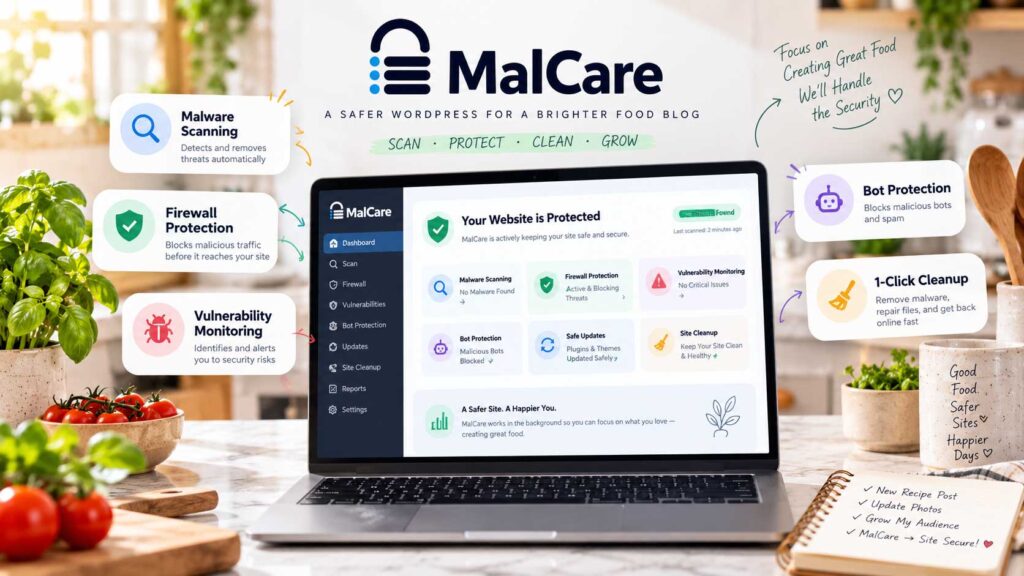
MalCare takes a different approach from many traditional WordPress security plugins.
Its biggest strengths are malware scanning, firewall protection, vulnerability monitoring, virtual patching, and—on higher plans—automated malware cleanup.
For food bloggers who are especially concerned about malware or want intensive scanning handled away from their hosting server, MalCare is worth considering.
MalCare Security Features
Depending on your plan, MalCare includes features such as:
- Malware scanning
- WordPress firewall
- Bot protection
- Login protection
- Two-factor authentication
- Vulnerability monitoring
- Virtual patching
- IP blocking
- Geoblocking
- Security alerts
- Activity logs on higher plans
- Automated malware cleanup on higher plans
Everything is managed from a centralized dashboard, which is convenient if you run more than one WordPress site.
Off-Server Malware Scanning
One of MalCare’s biggest advantages is the way it handles malware scanning.
Instead of performing all intensive analysis directly on your hosting server, MalCare processes much of the scan through its own infrastructure.
That approach is especially attractive for image-heavy recipe sites where backups, caching, advertising scripts, and large media libraries are already putting demands on the server.
It also means MalCare can inspect more than just the public-facing pages of your website.
Its scanner can analyze areas such as WordPress core files, plugins, themes, uploads, database content, and other parts of the installation.
WordPress Firewall and Bot Protection
MalCare also includes a WordPress-focused firewall.
The free plan includes a basic firewall, while paid plans add stronger protections such as advanced firewall rules, virtual patching, bot protection, real-time IP blacklisting, and custom attack rules.
That matters as your traffic grows because legitimate search crawlers, ordinary visitors, scrapers, and malicious bots may all be hitting the site at the same time.
Some bots are legitimate search crawlers. Others may attempt to:
- Probe vulnerable plugins
- Guess passwords
- Scrape content
- Generate spam
- Scan login pages
- Send malicious requests
MalCare’s paid protection is designed to filter more of that unwanted activity without requiring you to create every firewall rule manually.
Vulnerability Monitoring and Virtual Patching
MalCare also monitors WordPress plugins and themes for known vulnerabilities.
That matters because food blogs often rely on a large plugin stack for recipes, SEO, advertising, caching, analytics, email marketing, affiliate links, social sharing, and other features.
Paid MalCare plans add virtual patching, which can temporarily protect against certain newly disclosed vulnerabilities before the affected plugin or theme receives an official fix.
Virtual patches are useful as temporary protection, but they should not replace normal software updates.
Once an official fix becomes available, update the affected software.
Login Protection and 2FA
MalCare includes login protection against brute-force and stolen-credential attacks.
Two-factor authentication is also available, including on the free plan for up to two WordPress users. Protect expands that to five users, Repair to fifteen, and Fortify to all users.
For a food blog, 2FA should be enabled for administrator accounts and anyone with significant control over the site.
Even if a password is compromised, the attacker would still need the second authentication method to gain access.
Malware Cleanup
This is where MalCare becomes especially interesting.
The free and Protect plans focus primarily on detection and prevention.
Instant malware cleanup starts with the Repair plan, while Fortify adds unlimited manual security fixes and faster expert response times.
That distinction matters.
Installing the free plugin does not mean you automatically receive malware removal.
If cleanup is one of your main reasons for choosing MalCare, make sure you select a plan that actually includes it.
MalCare Free vs. Paid
| Plan | Main Features |
|---|---|
| Free — $0 | Weekly malware scans, basic firewall, vulnerability alerts, login protection, 2FA for 2 users, SSL monitoring |
| Protect — $99/year | Daily scanning, advanced firewall, virtual patching, bot protection, geoblocking, real-time IP blocking, 2FA for 5 users |
| Repair — $299/year | Everything in Protect plus twice-daily scans, instant malware cleanup, real-time firewall, 7-day activity logs, 2FA for 15 users |
| Fortify — $499/year | Hourly scanning, unlimited manual security fixes, 60-day activity logs, advanced scanners, faster expert response, 2FA for all users |
Prices above are for one website as of September 2026 and can change.
For a small food blog, the free plan may be enough for basic monitoring.
Protect makes more sense once you want stronger prevention.
Repair becomes more attractive when your site generates enough traffic or revenue that fast malware cleanup matters.
MalCare Pros and Cons
| Pros | Cons |
|---|---|
| Malware scanning handled largely off-server | Many advanced protections require a paid plan |
| Basic free firewall and login protection | Instant malware cleanup starts with Repair |
| Vulnerability monitoring | More expensive than relying on a free security plugin |
| Virtual patching on paid plans | Activity logs are reserved for higher plans |
| Bot protection available | Smaller blogs may not need the full platform |
| Two-factor authentication | Requires a MalCare account |
| Automated malware cleanup available | |
| Centralized dashboard for multiple sites | |
| Advanced firewall protection on paid plans |
Is MalCare Good for Food Bloggers?
Yes, especially once your food blog becomes valuable enough that a malware infection could cause real business disruption.
Imagine your site earns money through display ads and affiliate links and receives most of its traffic from Google or Pinterest.
If malware causes redirects, search-engine warnings, hosting suspension, or downtime, even a relatively short incident could affect both traffic and revenue.
At that stage, strong malware detection and a straightforward cleanup option become much more valuable.
For a brand-new food blog, though, a good free security plugin combined with backups, regular updates, and 2FA may still be enough.
Best For
Best for established sites where malware detection and fast cleanup are priorities.
MalCare is also useful if you manage several WordPress sites and prefer monitoring security from one centralized dashboard.
Our final option takes a more hands-on approach to traffic filtering, bot control, and WordPress access rules.

7. WP Cerber Security
WP Cerber Security is a WordPress security plugin focused on login protection, bot detection, traffic filtering, malware scanning, anti-spam protection, and detailed activity monitoring.
It has been actively developed through 2026, with several releases during the summer, including versions 9.9, 9.9.3, and 9.9.5.
For food bloggers, WP Cerber is especially interesting if you want detailed control over who can access your site, how suspicious traffic is handled, and which WordPress features are exposed to outside requests.
WP Cerber Security Features
WP Cerber includes or offers features such as:
- Brute-force protection
- Login-attempt limiting
- Two-factor authentication
- Web application firewall
- Bot detection
- IP allowlists and blocklists
- Country-based access rules
- Malware scanning
- WordPress integrity checking
- Automatic malware cleanup on supported plans
- Anti-spam protection
- reCAPTCHA support
- Login activity monitoring
- REST API controls
- XML-RPC controls
- Custom login URL
- User-session controls
- Security notifications
- Centralized management for multiple sites
Its feature set is broader than simple login protection and includes both preventative tools and malware-related security features.
Login and Brute-Force Protection
Login protection has always been one of WP Cerber’s main strengths.
The plugin can monitor login attempts coming through standard WordPress forms as well as XML-RPC, REST API requests, and authentication cookies.
It can also limit repeated login attempts and automatically block suspicious IP addresses or networks.
For a food blog, this can reduce the constant stream of automated login attempts that many WordPress sites receive.
WP Cerber also supports two-factor authentication, which adds another layer of protection for administrator and other privileged accounts.
Bot Detection and Traffic Inspector
WP Cerber includes a system called Traffic Inspector that analyzes suspicious HTTP requests reaching your site.
It can identify potentially dangerous requests and block activity that matches malicious patterns.
The plugin also uses traps and honeypots to help identify automated bots and suspicious behavior.
That level of traffic filtering is helpful on recipe sites that receive a mix of search crawlers, scrapers, comment bots, and ordinary readers.
Some bots are legitimate search crawlers, while others may attempt to:
- Probe plugins for vulnerabilities
- Guess WordPress passwords
- Submit spam
- Scrape content
- Scan REST API endpoints
- Abuse registration or comment forms
Being able to inspect and control that traffic gives you more flexibility than relying only on basic login lockouts.
IP Access Controls
WP Cerber provides detailed IP access-list controls.
You can maintain both:
- Allowed IP addresses
- Blocked IP addresses
The system can work with individual addresses, ranges, and networks.
These controls give you a more precise way to protect sensitive areas of WordPress or permanently block traffic you already know is abusive.
However, IP restrictions should be configured carefully.
If your own IP changes regularly, overly strict rules can accidentally lock you out of WordPress.
Malware Scanning and Integrity Checking
WP Cerber includes malware scanning and WordPress integrity checking.
Its scanner can help identify:
- Modified WordPress files
- Suspicious files
- Malware
- Backdoors
- Other unexpected changes
Professional features can also automatically clean malware and suspicious files when detected. WP Cerber states that its Professional protection can scan frequently and automatically remove malicious code and restore affected files.
This gives Cerber a broader security role than plugins that focus mainly on login protection or hardening.
Anti-Spam Protection
WP Cerber also includes tools aimed at spam and automated form abuse.
It can protect areas such as:
- Comments
- Registration forms
- Login forms
- WooCommerce forms
The plugin combines its own anti-spam and bot-detection tools with reCAPTCHA support.
Recipe sites with busy comment sections, contact forms, or user registrations may get the most value from these anti-spam controls.
REST API and XML-RPC Controls
WP Cerber provides detailed controls over both the WordPress REST API and XML-RPC.
You can restrict access, limit functionality by user role, or disable certain features entirely.
These controls can reduce unwanted automated traffic, but they should be used carefully.
Recipe plugins, mobile apps, Jetpack-style integrations, publishing tools, and other services may depend on the REST API or XML-RPC.
Do not disable them unless you understand what your site uses.
Activity Monitoring
WP Cerber keeps detailed logs of security-related activity.
That can include:
- Login attempts
- Successful logins
- Failed logins
- Blocked IP addresses
- Suspicious requests
- User activity
- Firewall events
This can make it easier to investigate what happened when something unusual occurs on your website.
The plugin also provides contextual information about blocked IP addresses, including the reason they were blocked and related activity.
Custom Login URL
WP Cerber can replace the standard WordPress login URL with a custom address.
That can reduce some automated attacks targeting:
/wp-login.php
and /wp-admin/.
However, as with the other plugins in this guide, changing the login URL should only be treated as an additional layer.
It does not replace:
- Strong passwords
- 2FA
- Brute-force protection
- Regular updates
WP Cerber Free vs. Professional
WP Cerber offers substantial security functionality, while its Professional version expands malware scanning, automated cleanup, advanced traffic controls, and centralized management.
| Core / Free Features | Professional Features |
|---|---|
| Brute-force protection | Advanced malware scanning |
| Login-attempt limiting | Automatic malware cleanup |
| Bot detection | More frequent security scanning |
| Traffic Inspector | Advanced automated protection |
| IP access lists | Expanded security automation |
| Two-factor authentication | Advanced multi-site management |
| REST API controls | Additional professional security tools |
| XML-RPC controls | |
| Anti-spam protection | |
| Activity monitoring | |
| Custom login URL |
Exact free and paid feature availability can change, so check WP Cerber’s current comparison before purchasing.
WP Cerber Pros and Cons
| Pros | Cons |
|---|---|
| Strong login and brute-force protection | Large number of settings can feel technical |
| Detailed bot and traffic controls | Aggressive access rules can cause compatibility problems |
| Two-factor authentication | Some malware and cleanup capabilities require Professional |
| IP allowlists and blocklists | More configuration-heavy than some beginner-focused plugins |
| Malware scanning and integrity checking | REST API and XML-RPC restrictions require careful setup |
| Anti-spam protection | |
| Detailed activity monitoring | |
| Custom login URL | |
| Country-based access controls | |
| Automated malware cleanup available |
Is WP Cerber Good for Food Bloggers?
Yes, especially if you want more control over traffic, login attempts, bots, and WordPress access rules.
WP Cerber makes the most sense for sites dealing with heavy bot traffic or spam where the owner wants more control than a simple set-and-forget security plugin provides.
Its combination of:
login protection + firewall controls + bot detection + malware scanning + anti-spam protection
makes it a broad security platform rather than just a login-security plugin.
The tradeoff is complexity.
Food bloggers who want the simplest possible setup may find Wordfence, AIOS, or Shield easier to approach initially.
Best For
Best for users who want detailed traffic, bot, IP, and access controls.
WP Cerber also makes sense for managing several WordPress sites from one place, especially when you want more control over IP rules, REST API access, and user activity.
Now that we’ve covered all seven options, let’s compare them side by side and narrow down which approach makes the most sense for your food blog.
Which WordPress Security Plugin Should You Choose?
There is no single security plugin that makes sense for every food blog.
The right choice depends on what you want to protect, how much traffic your site receives, your hosting setup, your budget, and how much time you want to spend managing security.
Here is the simplest way to narrow down the options.
Choose Wordfence for All-Around WordPress Security
Wordfence is a strong choice if you want firewall protection, malware scanning, login security, 2FA, file monitoring, and security alerts managed from one WordPress dashboard.
Its free version provides enough protection for many small and medium-sized food blogs, while Premium adds faster threat updates and additional security controls.
Choose Sucuri for a Cloud-Based Firewall
Sucuri is worth considering if you want malicious traffic filtered before it reaches your hosting server.
The free plugin provides monitoring and hardening tools, while its paid cloud firewall adds traffic filtering, DDoS protection, caching, and CDN functionality.
That extra layer becomes more valuable as a recipe site starts receiving heavier traffic.
Choose Shield Security for Bot Protection
Shield Security stands out for automated bot detection and login protection.
Its silentCAPTCHA system, automatic IP blocking, firewall, and brute-force protection make it a good fit if your food blog receives a lot of automated traffic and you do not want legitimate visitors constantly completing CAPTCHA challenges.
Choose AIOS for Plenty of Free Security Tools
All-In-One Security is a good option if you want a broad collection of free WordPress hardening tools.
It combines firewall rules, login security, 2FA, spam protection, file monitoring, and account protection in one dashboard.
For a newer food blog, that gives you plenty of room to improve security before paying for a premium plan.
Choose Kadence Security for Login and User Protection
Kadence Security focuses heavily on securing WordPress accounts.
Its strengths include 2FA, brute-force protection, password policies, vulnerability monitoring, and user-security controls.
It is a natural fit for sites where writers, editors, developers, assistants, or other team members all need their own WordPress access.
Choose MalCare for Malware Detection and Cleanup
MalCare becomes more attractive when malware protection is your biggest concern.
Its off-server scanning, vulnerability monitoring, firewall protection, virtual patching, and cleanup options become more valuable on established sites where an infection could affect traffic or revenue.
Choose WP Cerber for Detailed Traffic and Access Control
WP Cerber is worth considering if you want more granular control over login attempts, bots, IP addresses, spam, REST API access, and suspicious traffic.
It is better suited to bloggers who are comfortable working with more detailed security settings than someone looking for a simple set-and-forget setup.
Best WordPress Security Plugin by Use Case
| If You Need… | Consider |
|---|---|
| Broad free WordPress security | Wordfence |
| Cloud-based firewall | Sucuri |
| Automated bot protection | Shield Security |
| Lots of free hardening tools | All-In-One Security (AIOS) |
| Login and user-account protection | Kadence Security |
| Malware scanning and cleanup | MalCare |
| Detailed traffic, IP, and access controls | WP Cerber Security |
These are not absolute rankings. Each plugin takes a different approach to WordPress security.
Rather than choosing whichever plugin has the longest feature list, focus on the problems you actually need to solve.
Free vs. Paid WordPress Security Plugins
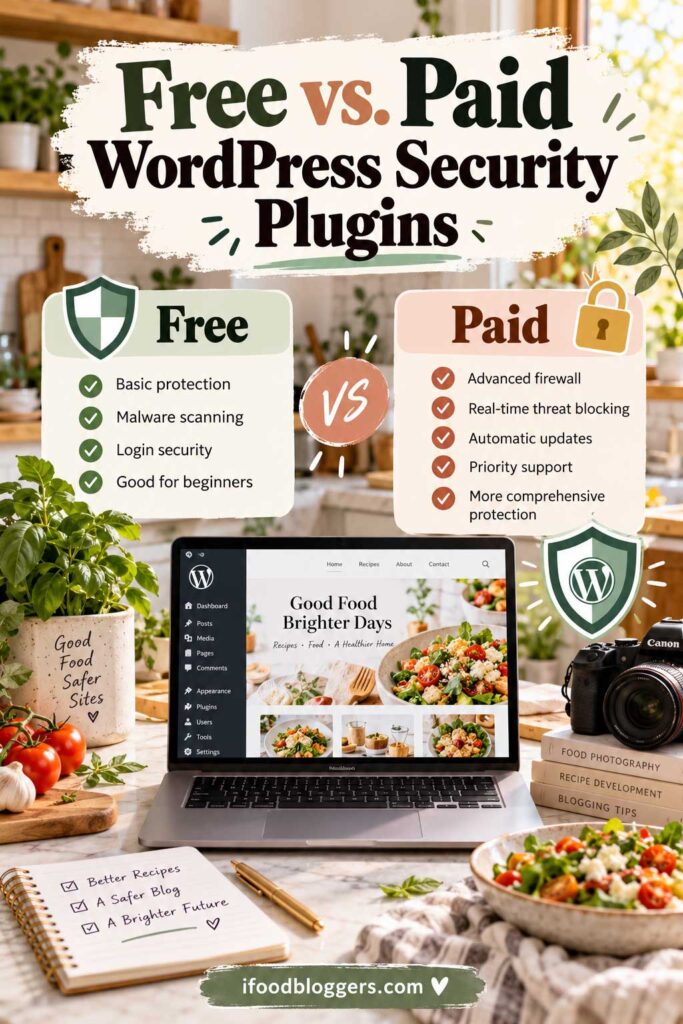
Do you need to pay for WordPress security?
For a new food blog, usually not right away.
A well-configured free security plugin can provide a strong starting point when it is combined with:
- Regular WordPress, plugin, and theme updates
- Strong unique passwords
- Two-factor authentication
- Automatic off-site backups
- Reliable hosting
- HTTPS
- Limited administrator access
Premium security becomes easier to justify as your website grows.
A paid plan may add features such as:
- Faster firewall-rule updates
- Advanced malware detection
- Automated malware cleanup
- Virtual vulnerability patching
- Cloud-based traffic filtering
- More detailed activity logs
- Advanced bot protection
- Priority support
Think about what a security incident would cost your business rather than looking only at the subscription price.
If your food blog generates meaningful advertising, affiliate, sponsorship, or product revenue, stronger protection may be a relatively small expense compared with the cost of downtime or a serious malware infection.
Should You Install More Than One Security Plugin?
Usually, no.
Running several full WordPress security suites at the same time can create unnecessary overlap.
Two plugins may both try to control:
- Firewall rules
- IP blocking
- Login attempts
.htaccesssettings- REST API access
- Login behavior
That does not necessarily make your website more secure. It can instead create conflicts and make problems harder to troubleshoot.
A cleaner setup is usually:
One primary security plugin + hosting-level security + an independent backup solution
This gives you several layers of protection without unnecessarily duplicating the same features.
Don’t Forget Your Hosting Security
Your security plugin is only one part of protecting a food blog.
Your hosting company may already provide protections such as:
- Server-level firewalls
- Malware monitoring
- DDoS mitigation
- Automated backups
- WordPress updates
- Account isolation
- Security monitoring
- SSL certificates
Before paying for another security service, check what your hosting plan already includes.
You may already have some protection working at the server level.
Backups Are Still Essential
Even an excellent security setup cannot guarantee that nothing will ever go wrong.
That is why backups remain one of the most important parts of WordPress security.
Your backups should ideally be:
- Automatic
- Frequent
- Stored away from your main web server
- Easy to restore
- Tested occasionally
A food blog can contain years of recipe photography, SEO work, comments, recipe cards, custom settings, and other content that would be difficult to rebuild.
Do not keep your only backup on the same server as the website it is meant to protect.
Security helps reduce the likelihood of a serious problem.
Backups give you a way to recover when something still goes wrong.
How to Secure a Food Blog Beyond Installing a Security Plugin
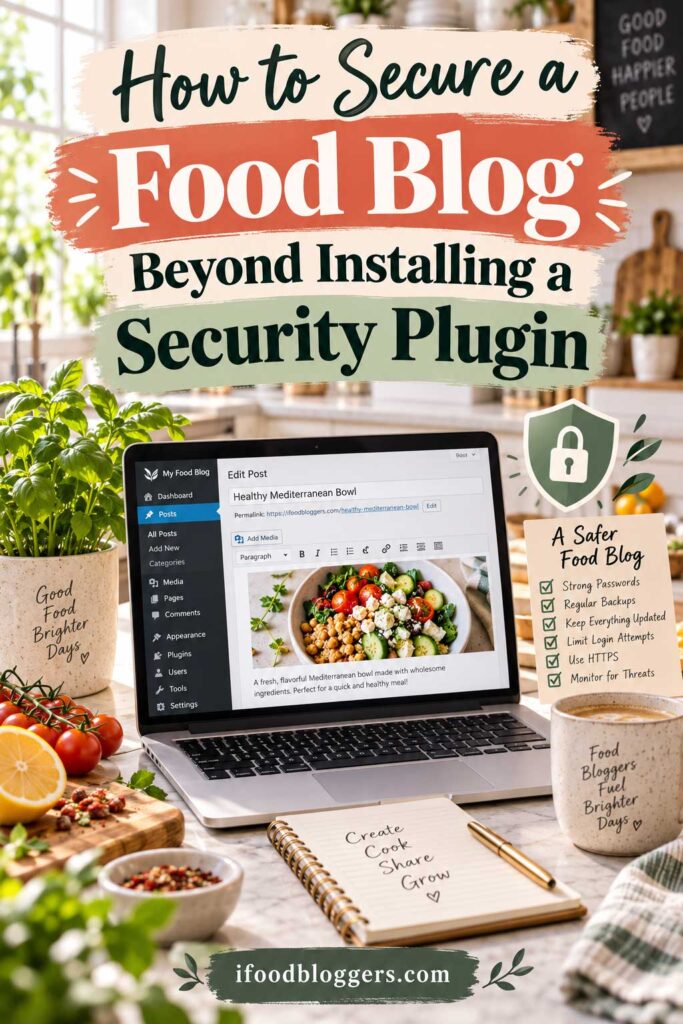
Installing a WordPress security plugin is important, but it should never be your entire security strategy.
A secure food blog depends on several layers working together: your hosting, passwords, backups, plugins, user accounts, and WordPress settings all matter.
Here are the most important practices to follow.
Keep WordPress, Plugins, Themes, and PHP Updated
Outdated software is one of the biggest risks on any WordPress site.
That includes:
- WordPress core
- Plugins
- Themes
- PHP
- Server software
When developers release security fixes, older versions can become easier targets for attackers.
Install legitimate security updates promptly, and test major changes on a staging site when possible.
Remove Plugins and Themes You No Longer Use
If you no longer use a plugin, delete it instead of simply deactivating it.
The same applies to old themes.
Ideally, keep only:
- Your active theme
- A current default WordPress theme for troubleshooting
- Plugins you actually use
Fewer unnecessary files mean fewer things to maintain and fewer potential attack points.
Use Strong, Unique Passwords
Never reuse your WordPress administrator password on other websites.
Use a long, unique password specifically for your food blog.
Credential-stuffing attacks often rely on passwords exposed in unrelated data breaches, so reusing the same password across several services can put your site at risk.
A reputable password manager makes unique passwords much easier to manage.
Enable Two-Factor Authentication
Enable 2FA for administrator accounts whenever possible.
You should also consider requiring it for:
- Editors
- Developers
- Virtual assistants with elevated access
- Website managers
- Anyone who can install plugins or change important settings
Two-factor authentication provides another barrier even if a password is stolen.
Limit Administrator Access
Not everyone working on your food blog needs administrator privileges.
Use the lowest WordPress role that allows someone to do their job.
For example:
Administrator — Full control over the site.
Editor — Can manage and publish content.
Author — Can publish and manage their own posts.
Contributor — Can create content but cannot publish it.
If someone is only writing recipes, they probably do not need administrator access.
Remove Old User Accounts
As your food blog grows, you may work with writers, developers, photographers, virtual assistants, or SEO professionals.
When someone no longer needs access, review their account.
You may need to:
- Reduce permissions
- End active sessions
- Reset credentials
- Disable access
- Delete the account
Old administrator accounts are easy to forget about and can become unnecessary security risks.
Create Automatic Off-Site Backups
Every food blog should have automatic backups.
A complete backup should include:
- Database
- Themes
- Plugins
- Uploads
- Recipe photographs
- Configuration files
Keep at least one copy away from your main hosting server.
If the server itself is compromised, you do not want your only backup stored in the same place.
Daily backups are a good starting point for many active food blogs, while busier sites may need more frequent backups.
Make Sure Your Backups Actually Work
A backup is only useful if you can restore it.
Occasionally confirm that backups are completing successfully and that you understand the restoration process.
You do not want to learn how restoration works for the first time during an emergency.
Choose Reputable WordPress Hosting
Your hosting provider is another important part of your security setup.
A good host may include features such as:
- Server-level firewalls
- Malware monitoring
- DDoS mitigation
- Automated backups
- SSL certificates
- Account isolation
- Security patching
- Server monitoring
You do not necessarily need the most expensive hosting plan available, but security and support quality should matter just as much as price.
Use HTTPS Everywhere
Your food blog should load entirely over HTTPS.
HTTPS encrypts information transmitted between your website and visitors’ browsers.
Most reputable hosts now provide free SSL certificates.
Make sure your secure URL loads correctly and that visitors are automatically redirected from HTTP to HTTPS.
Avoid Nulled Plugins and Themes
Never install pirated or modified premium WordPress plugins and themes.
“Nulled” software can contain:
- Malware
- Backdoors
- Hidden administrator accounts
- Spam links
- Malicious redirects
Download software from WordPress.org, the official developer, or a reputable marketplace.
Saving money on a plugin is not worth risking your entire food blog.
Review Plugins Before Installing Them
Keep the SEO tools sentence where it already appears later, after:
“Periodically removing unnecessary software can improve both security and performance.”
The section should simply read:
Before installing another plugin, ask whether you actually need it.
Check:
- How recently it was updated
- Whether it supports your WordPress version
- Whether the developer is still active
- User reviews
- Support activity
- Known vulnerabilities
- Whether another plugin already provides the same feature
Food blogs can accumulate a surprising number of plugins over time.
Periodically removing unnecessary software can improve both security and performance.
You can also compare the best SEO tools for food bloggers before adding another analytics, keyword research, or optimization tool to your workflow.
Protect Your Hosting, Domain, and Email Accounts
Securing WordPress while ignoring the accounts connected to it leaves an important gap.
Use strong passwords and 2FA where available for:
- Hosting
- Domain registrar
- CDN
- Cloud storage
- Backup services
Your domain registrar is especially important.
If someone gains control of your domain, they may be able to redirect visitors away from your website even if WordPress itself remains secure.
Keep Your Own Computer Secure
Your website can also be compromised through the computer you use to manage it.
Keep your operating system, browser, and security software updated.
Be especially cautious with emails claiming there is a problem with:
- WordPress
- Your hosting account
- Your domain
- Google Search Console
- AdSense
- Payment services
Phishing emails often imitate legitimate companies and direct users to fake login pages designed to steal credentials.
Use a Staging Site for Major Changes
A staging site gives you a private copy of your website where you can test changes before applying them to the live site.
Use staging for:
- Major WordPress updates
- PHP upgrades
- Plugin changes
- Theme changes
- Firewall rules
- Security hardening
This is especially useful when changing aggressive security settings that could interfere with recipe plugins, advertising, forms, APIs, or other integrations.
A Simple WordPress Security Setup for Food Bloggers
You do not need dozens of security products.
For many food bloggers, a sensible setup looks like this:
Reputable hosting + one primary security plugin + 2FA + automatic off-site backups + regular updates
That covers the most important layers without making your site unnecessarily complicated.
As your traffic, revenue, and website value grow, you can add more advanced protection when there is a clear reason to do so.
Common WordPress Security Mistakes Food Bloggers Should Avoid
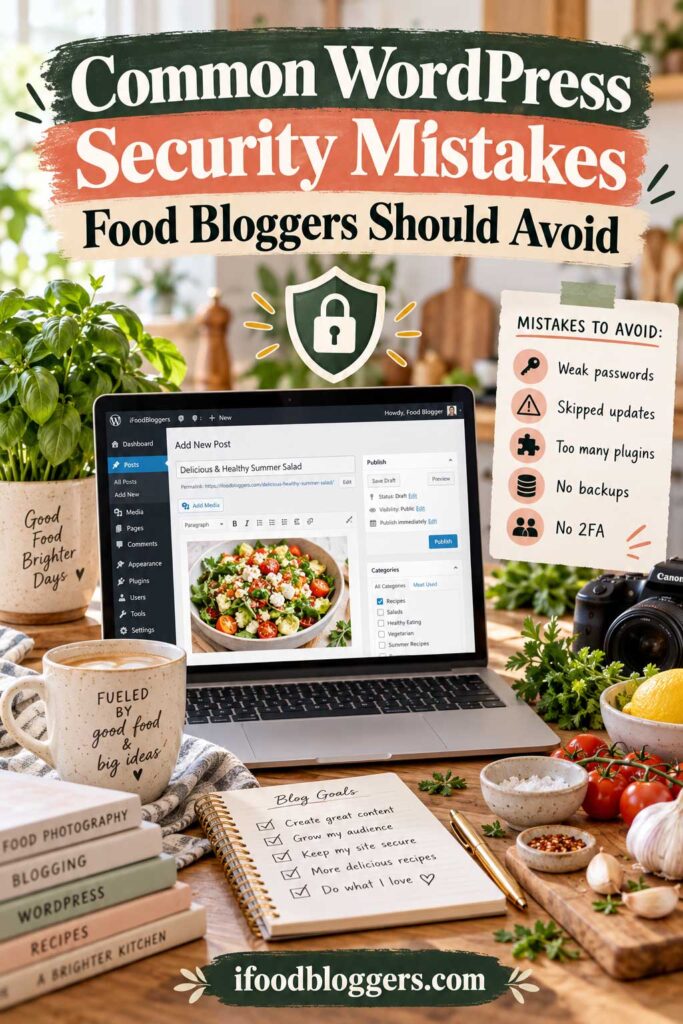
Even a good security plugin cannot protect your website from every mistake.
Many WordPress security problems come from weak passwords, outdated software, unnecessary user accounts, poorly configured plugins, or backups that are never tested.
Here are some of the most common mistakes food bloggers should avoid.
Reusing the Same Password Everywhere
Using the same password for WordPress, hosting, email, and other services creates unnecessary risk.
If that password is exposed in a breach somewhere else, attackers may try the same credentials on your WordPress login.
Use a unique password for every important account, especially:
- WordPress administrator
- Hosting
- Domain registrar
- Cloud storage
- Backup service
A password manager can make this much easier.
Ignoring Security Updates
Leaving WordPress, plugins, or themes outdated for weeks or months can expose known vulnerabilities.
Install security updates promptly and use a staging site when you need to test major changes before applying them to your live food blog.
Keeping Unused Plugins Installed
Inactive plugins can still become a security risk if their files remain on your server.
If you no longer use a plugin or theme, delete it rather than leaving it installed indefinitely.
This is especially important for abandoned software that is no longer receiving updates.
Installing Too Many Security Plugins
Running several full security suites at the same time does not necessarily make your site safer.
It can create:
- Conflicting firewall rules
- Duplicate scans
- Multiple login restrictions
- Performance issues
- Confusing alerts
- Difficult troubleshooting
Choose one primary security plugin and add other tools only when they serve a clearly different purpose.
The same rule applies to SEO. You generally do not need several plugins performing the same job, so compare the best WordPress SEO plugins for food bloggers before deciding which one belongs in your setup.
Giving Too Many People Administrator Access
Writers, editors, developers, and virtual assistants do not automatically need administrator privileges.
Give each person the lowest WordPress role that allows them to do their job.
If one account is compromised, limiting permissions can reduce the amount of damage an attacker can cause.
Forgetting About Old User Accounts
Former freelancers, developers, and team members should not keep access forever.
Review your WordPress users regularly and remove or downgrade accounts that are no longer needed.
Old administrator accounts are especially important to clean up.
Relying on a Hidden Login URL
Changing /wp-login.php can reduce some basic automated login attempts, but it should not be treated as real authentication security.
Use it only as an extra layer alongside:
- Strong passwords
- Two-factor authentication
- Brute-force protection
- Login monitoring
A custom login URL can reduce noise, but it does not make the page impossible to find.
Skipping Two-Factor Authentication
Installing a security plugin but leaving 2FA disabled is a missed opportunity.
Two-factor authentication adds another barrier even if someone obtains your password.
At minimum, enable it for administrator accounts.
Keeping Backups on the Same Server
A backup stored only inside your hosting account may disappear along with the website if the server or account is compromised.
Keep at least one backup somewhere else, such as:
- Cloud storage
- A dedicated backup provider
- Another server
- Local storage
Your recovery copy should survive even if your main website does not.
Never Testing Your Backups
A backup is only useful if it can actually be restored.
Occasionally confirm that backups are completing successfully and that you know how to restore the site.
Do this especially before major updates, migrations, PHP upgrades, or security changes.
Installing Nulled Plugins or Themes
Pirated premium plugins and themes can contain modified code, hidden links, backdoors, or malware.
Saving money on a plugin is not worth risking an entire food blog.
Download WordPress software only from trusted sources.
Ignoring Domain and Hosting Security
WordPress is only one part of your website.
Your hosting account, domain registrar, email, CDN, and backup service should also use strong passwords and two-factor authentication where available.
Losing control of your domain can be just as damaging as losing access to WordPress.
Ignoring Important Security Alerts
Security plugins can generate a lot of notifications, which makes it easy to start ignoring them.
Configure alerts so important events stand out.
Pay attention to warnings involving:
- New administrator accounts
- Known plugin vulnerabilities
- Malware detections
- Unexpected file changes
- Repeated login attempts
- Disabled security settings
Not every alert is urgent, but important warnings should not disappear into an inbox you never check.
Making Aggressive Security Changes Without Testing
Some WordPress hardening options can break legitimate site functionality.
Strict rules may interfere with:
- Recipe plugins
- REST API requests
- XML-RPC integrations
- Email marketing tools
- Advertising platforms
- Contact forms
- Mobile apps
- External publishing services
Enable stronger restrictions gradually and test the site after important changes.
Treating Security as a One-Time Setup
WordPress security changes as your website changes.
You may add new plugins, change hosting, bring in new contributors, or connect additional services.
A quick security review every few months can help you catch old accounts, outdated software, weak settings, and backup problems before they become serious.
A Simple Security Routine for Food Bloggers
You do not need to spend hours every week managing security.
A practical routine is enough:
- Keep WordPress, plugins, and themes updated
- Review important security alerts
- Confirm backups are running
- Remove unused plugins and user accounts
- Keep 2FA enabled
- Test major changes before applying them to the live site
The goal is to make security part of normal website maintenance instead of something you only think about after a problem happens.
Frequently Asked Questions About WordPress Security Plugins
Do Food Blogs Really Get Hacked?
Yes.
Food blogs can be targeted just like any other WordPress website. In many cases, the attack is automated rather than aimed at one specific blogger.
Bots continuously scan websites for outdated plugins, weak passwords, exposed login pages, vulnerable themes, and other security weaknesses.
That means even a small recipe blog can receive malicious login attempts or vulnerability scans.
Is Wordfence Enough to Protect a Food Blog?
Wordfence can provide a strong layer of protection through its firewall, malware scanner, login security, brute-force protection, and two-factor authentication.
However, it should not be your only defense.
You should also use:
- Strong unique passwords
- Two-factor authentication
- Regular WordPress updates
- Reliable off-site backups
- Reputable hosting
- Limited administrator access
Think of Wordfence as one part of a broader WordPress security setup.
What Is the Best Free WordPress Security Plugin?
Several good free options are available.
Wordfence offers a strong combination of firewall protection, malware scanning, login security, and 2FA.
Shield Security stands out for automated bot and login protection.
All-In-One Security (AIOS) provides a large collection of free WordPress hardening tools.
The right choice depends on which type of protection matters most to you.
Do WordPress Security Plugins Slow Down Your Website?
They can.
Features such as real-time traffic monitoring, frequent malware scans, detailed logging, and aggressive firewall rules may use additional server resources.
That does not mean you should avoid security plugins.
Choose a reputable plugin, avoid enabling features you do not need, and monitor your site’s performance after changing major settings.
If server load becomes a concern, a service that performs more scanning or filtering outside your hosting environment may be worth considering.
Can You Use Wordfence and Sucuri Together?
Yes, but there can be unnecessary overlap.
For example, you could use Sucuri’s cloud firewall in front of your website while keeping selected Wordfence features active inside WordPress.
However, running multiple firewall, blocking, and login-protection systems can make troubleshooting more complicated.
For most food bloggers, one primary WordPress security solution is simpler.
Should You Pay for a WordPress Security Plugin?
Not necessarily.
A newer food blog may be well served by a free security plugin combined with:
- Good hosting
- Automatic backups
- Regular updates
- Strong passwords
- Two-factor authentication
Paid security becomes more attractive as your site grows and downtime or malware could affect meaningful advertising, affiliate, sponsorship, or product revenue.
Premium plans may add faster threat updates, advanced malware scanning, virtual patching, automated cleanup, cloud filtering, and priority support.
Is Two-Factor Authentication Really Necessary?
It is strongly recommended, especially for administrator accounts.
A password can still be exposed through phishing, malware, or a data breach.
Two-factor authentication adds another verification step, making it much harder for someone to log in using only a stolen password.
Should You Change Your WordPress Login URL?
You can, but it should only be treated as an additional layer of protection.
Changing the default login URL may reduce some automated login traffic, but it does not replace:
- Strong passwords
- 2FA
- Brute-force protection
- Login monitoring
A custom login URL reduces noise. It does not make your login page impossible to find.
How Often Should You Scan WordPress for Malware?
For an active food blog, automated daily scanning is a reasonable starting point when your security service supports it.
Higher-traffic or revenue-producing sites may benefit from more frequent monitoring.
You should also investigate immediately if you notice:
- Unexpected redirects
- Unknown administrator accounts
- Strange files
- Unfamiliar pages appearing in search results
- Search-engine security warnings
- Sudden unexplained changes to the site
How Often Should You Back Up a Food Blog?
Daily backups are a good starting point for many active food blogs.
Sites that receive frequent comments, orders, memberships, or content changes may need more frequent backups.
A useful rule is simple:
Back up often enough that losing everything since your last backup would not be a major problem.
Where Should WordPress Backups Be Stored?
Do not keep your only backup on the same server as your website.
Keep at least one copy somewhere separate, such as:
- Cloud storage
- A dedicated backup provider
- Another server
- Local storage
This gives you a recovery option if your main hosting account is compromised.
Do You Need a Security Plugin If Your Host Already Provides Security?
Maybe.
Some managed WordPress hosts already include strong server-level firewalls, malware monitoring, backups, DDoS protection, and vulnerability detection.
Before installing a full security suite, check what your hosting provider already protects.
You may only need additional features such as 2FA, user monitoring, or activity logging.
What Should You Do If Your Food Blog Gets Hacked?
If you suspect your site has been compromised:
- Contact your hosting provider.
- Restrict or temporarily disable public access if necessary.
- Scan the website for malware.
- Change WordPress, hosting, email, and domain passwords.
- Remove unknown administrator accounts.
- Update WordPress, plugins, and themes.
- Reset WordPress security keys when appropriate.
- Restore from a verified clean backup if necessary.
- Check whether Google or other services are showing security warnings.
- Determine how the compromise happened before returning the site to normal.
If you are not comfortable removing malware yourself, use a reputable professional cleanup service rather than experimenting on the live website.
Which WordPress Security Plugin Is Best for Beginners?
Beginners usually benefit from a plugin that provides strong defaults without requiring constant configuration.
Wordfence, AIOS, Shield Security, and Kadence Security can all work well depending on what you want to protect.
Start with the recommended settings rather than enabling every advanced restriction immediately.
The best security setup is one that protects your site without breaking the features your food blog depends on.
Final Thoughts
Protecting your food blog does not have to be complicated, but security should be part of your normal website maintenance.
A good WordPress security plugin can block malicious traffic, protect login pages, detect malware, monitor file changes, flag vulnerable software, and add stronger account protection such as 2FA.
For most food bloggers, the best starting point is simple:
Choose one reliable security plugin, enable 2FA, keep WordPress updated, and maintain automatic off-site backups.
That foundation will take you much further than installing several overlapping security plugins and enabling every advanced setting.
A newer recipe blog may be perfectly well served by a strong free option such as Wordfence, Shield Security, AIOS, or Kadence Security.
As your traffic and revenue grow, premium features such as cloud firewalls, real-time threat updates, virtual patching, advanced malware scanning, and automated cleanup can become easier to justify.
What matters is matching the security setup to the way your site actually works.
Your security setup should protect your food blog without creating unnecessary complexity or interfering with recipe plugins, advertising, analytics, forms, or other services your site depends on.
Once the technical foundation is secure, you can turn your attention to growth with these free keyword research tools for food bloggers.
And remember that WordPress itself is only one part of the picture.
Your hosting account, domain registrar, email, backup service, and administrator accounts should also use strong unique passwords and two-factor authentication whenever possible.
Years of recipes, original photos, rankings, backlinks, and reader trust can live inside a single WordPress site. Protecting that work now is much easier than trying to recover it after a serious security incident.
Keep Building a Better Food Blog
Website security is only one part of running a successful food blog. Once your WordPress site is protected, these guides can help you improve your SEO, tools, content strategy, and overall setup:
- Best WordPress Recipe Plugins — Compare recipe plugins for structured data, recipe cards, nutrition information, ratings, and publishing features.
- Best Free Keyword Tools for Food Bloggers — Find keyword ideas, evaluate search opportunities, and plan content around what readers are actually searching for.
- Best Tools for Food Bloggers: 25+ Essential Blogging Tools — Explore useful tools for SEO, design, analytics, email marketing, productivity, and content creation.
- Best Blogging Platforms for Food Bloggers: Free & Paid — Compare WordPress and other blogging platforms to find the right setup for your food website.
- Best Domain Registrars for Food Bloggers — Learn what to look for when registering and managing one of your blog’s most important assets.
- 30 Ways to Get Traffic to Your Food Blog — Discover practical ways to grow traffic through SEO, Pinterest, social media, email, internal linking, and content promotion.
- 15 Food Blogging Mistakes Beginners Should Avoid — Avoid common SEO, content, branding, monetization, and website mistakes that can slow down your growth.